
This article explains what the Wrap widget is and why it is useful in Flutter. Many beginners rely only on Row and Column, but a Row often creates overflow issues when the screen width is full. This is where the Wrap widget becomes very helpful.
The Wrap widget also accepts multiple children just like Row and Column. The key difference is that when there is no space left, Wrap automatically moves the next widget to a new line. No manual calculation or adjustment is required.
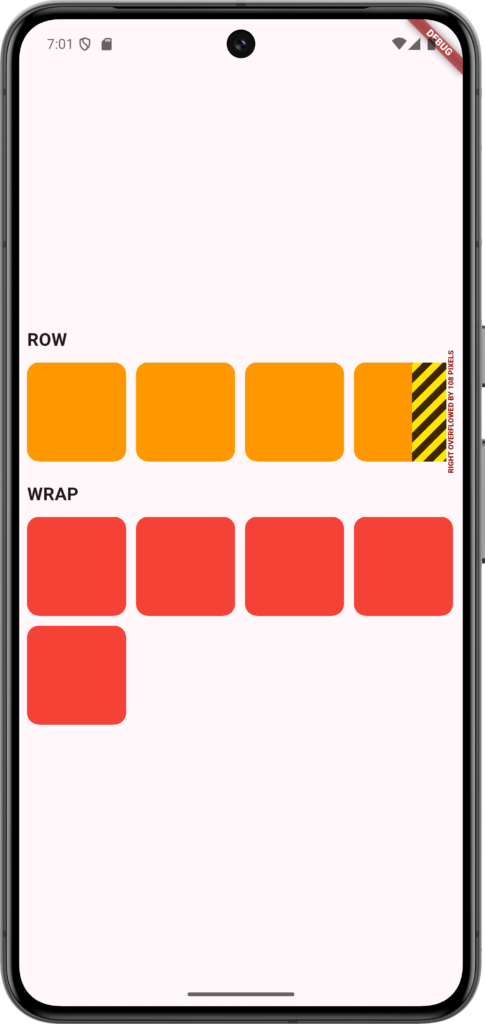
To demonstrate the behaviour, a Row widget is used with five containers. When the available width gets filled, the Row starts overflowing because it cannot push the remaining widgets to the next line.
Using the same five containers inside a Wrap widget gives a different result. Once the width is occupied, the remaining containers shift smoothly to the next line. This makes the layout responsive on all screen sizes.
This simple example shows how useful Wrap can be for building layouts like tags, chips, icons, and any set of widgets that need to flow naturally.
Code:
import 'package:flutter/material.dart';

class ImageDemo extends StatefulWidget {
  const ImageDemo({super.key});

  @override
  State<ImageDemo> createState() => _ImageDemoState();
}

class _ImageDemoState extends State<ImageDemo> {
  @override
  Widget build(BuildContext context) {
    return Scaffold(
      body: SafeArea(
        child: Padding(
          padding: const EdgeInsets.all(8.0),
          child: Column(
            mainAxisAlignment: MainAxisAlignment.center,
            crossAxisAlignment: CrossAxisAlignment.start,
            children: [
              Text(
                'ROW',
                style: TextStyle(fontSize: 18, fontWeight: FontWeight.bold),
              ),
              SizedBox(height: 10),
              Row(
                children: [
                  Container(
                    height: 100,
                    width: 100,
                    decoration: BoxDecoration(
                      color: Colors.orange,
                      borderRadius: BorderRadius.circular(12),
                    ),
                  ),
                  SizedBox(width: 10),
                  Container(
                    height: 100,
                    width: 100,
                    decoration: BoxDecoration(
                      color: Colors.orange,
                      borderRadius: BorderRadius.circular(12),
                    ),
                  ),
                  SizedBox(width: 10),
                  Container(
                    height: 100,
                    width: 100,
                    decoration: BoxDecoration(
                      color: Colors.orange,
                      borderRadius: BorderRadius.circular(12),
                    ),
                  ),
                  SizedBox(width: 10),
                  Container(
                    height: 100,
                    width: 100,
                    decoration: BoxDecoration(
                      color: Colors.orange,
                      borderRadius: BorderRadius.circular(12),
                    ),
                  ),
                  SizedBox(width: 10),
                  Container(
                    height: 100,
                    width: 100,
                    decoration: BoxDecoration(
                      color: Colors.orange,
                      borderRadius: BorderRadius.circular(12),
                    ),
                  ),
                ],
              ),
              SizedBox(height: 20),
              Text(
                'WRAP',
                style: TextStyle(fontSize: 18, fontWeight: FontWeight.bold),
              ),
              SizedBox(height: 10),
              Wrap(
                spacing: 10,
                runSpacing: 10,
                clipBehavior: Clip.antiAliasWithSaveLayer,
                children: [
                  Container(
                    height: 100,
                    width: 100,
                    decoration: BoxDecoration(
                      color: Colors.red,
                      borderRadius: BorderRadius.circular(12),
                    ),
                  ),

                  Container(
                    height: 100,
                    width: 100,
                    decoration: BoxDecoration(
                      color: Colors.red,
                      borderRadius: BorderRadius.circular(12),
                    ),
                  ),

                  Container(
                    height: 100,
                    width: 100,
                    decoration: BoxDecoration(
                      color: Colors.red,
                      borderRadius: BorderRadius.circular(12),
                    ),
                  ),

                  Container(
                    height: 100,
                    width: 100,
                    decoration: BoxDecoration(
                      color: Colors.red,
                      borderRadius: BorderRadius.circular(12),
                    ),
                  ),

                  Container(
                    height: 100,
                    width: 100,
                    decoration: BoxDecoration(
                      color: Colors.red,
                      borderRadius: BorderRadius.circular(12),
                    ),
                  ),
                ],
              ),
            ],
          ),
        ),
      ),
    );
  }
}
Output:
Hope this short explanation helps, and feel free to visit again for more Flutter content.